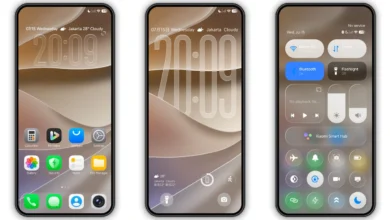
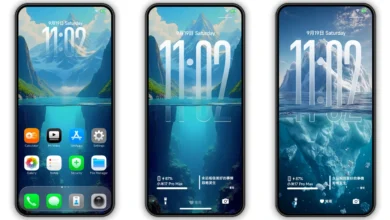
BUSD HyperOS Theme for Xiaomi and Redmi Phones
Hi Xiaomi and Redmi fans, today I’m sharing a new HyperOS theme BUSD for your Xiaomi phones. This HyperOS theme can change the look of your Xiaomi, Redmi and POCO phones, personalize your phones with awesome look and make it different with others.
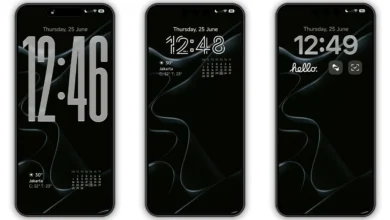
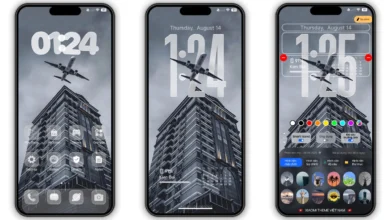
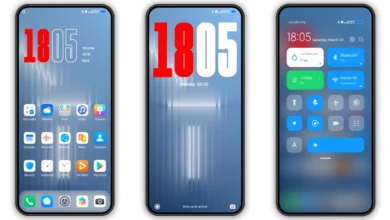
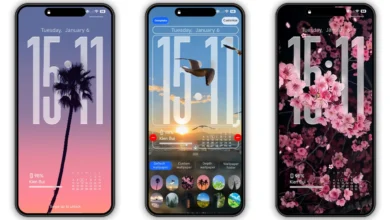
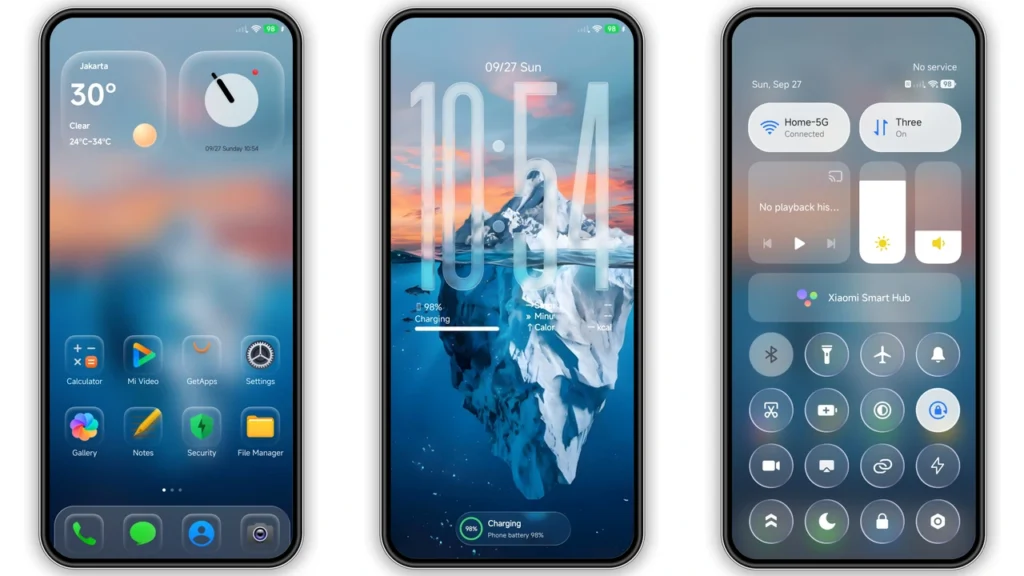
Give your Xiaomi, Redmi, or POCO device a cool, modern aesthetic with the BUSD HyperOS Theme. Combining breathtaking iceberg landscape wallpapers with sleek frosted glass icons, customizable translucent clock widgets, and soft control center toggles, BUSD provides an elegant, clean, and refreshing smartphone experience.
BUSD HyperOS theme is an attractive theme for your Xiaomi and Redmi phones. It brings you the new well designed icons, fresh wallpapers, new status bar, cool lock screen, stylish Always-on Display and many other great changes which you’ll love using it on your smartphone. This Xiaomi theme is completely free to use, so just download and apply it making a good feeling everyday.
BUSD HyperOS theme is compatible with HyperOS and works on Xiaomi, Redmi and POCO smartphones. If you like to try new themes on your smartphone and want a different look over your stock themes, then just download the BUSD HyperOS theme and share it to others.
BUSD HyperOS Theme Preview
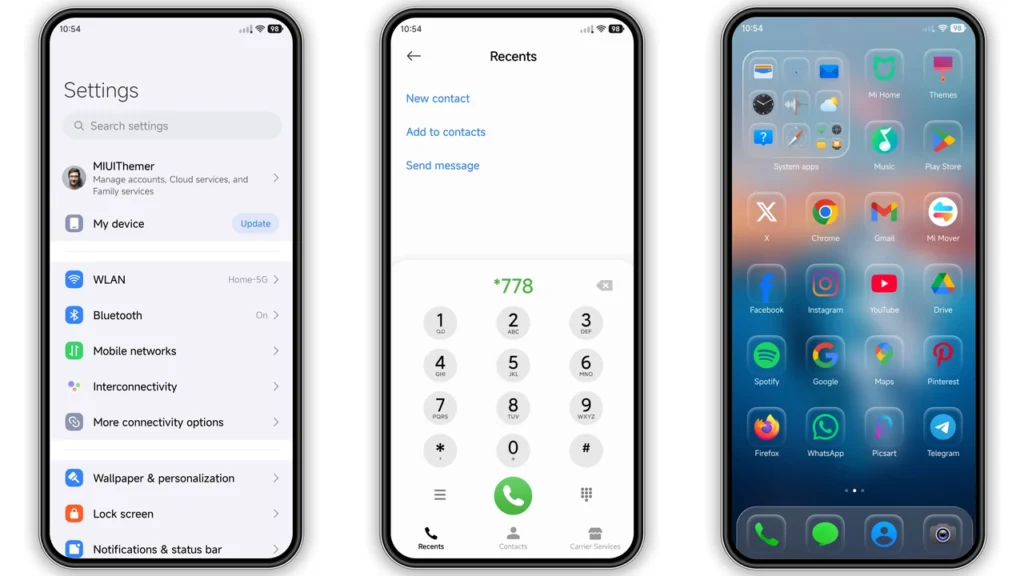
BUSD Theme Details
- Theme Size: 23.25 MB
- Designer: maidul
- Region/Server: Global
- Compatibility: HyperOS | HyperOS 2.0 | HyperOS 3.0
- Features: Transparent, Frosted glass, Dynamic Lock screen
Theme’s description:
✨ More Themes: https://t.me/HyperosSignals
💬 Feedback: Facing any issues with this theme? Let us know, and we’ll fix them ASAP. ❤️
📢 Telegram: https://t.me/HyperosSignals
Download

You may also like: Best HyperOS Theme You Should Try [2026]
How to Apply HyerOS and MIUI Themes [Stock Roms]
If you have HyerOS or MIUI Global Stable ROM(Stock ROM) running on your device, please follow this instruction to install and apply the theme.
- Open this page with Firefox browser.
- Click the “Official Theme Store Link” in the download area.
- This will open a xiaomi theme page in Chinese language, then open the 3 dots in the right corner, select “Open in app“.
- It will open the Theme Store APP “Themes Store” to download the theme.
- Download and Apply the theme.
If you have MIUI 14 ROM, please follow this instruction to install and apply the theme.
Note: If the “Official Theme Store Link” does not work then please open this page in Chrome Browser or the Default Xiaomi Browser and try again, the other browsers may not work.
How to Apply HyerOS and MIUI Themes on [Custom ROMs]
If you have any MIUI 11, 12, 13, 14 or HyperOS based custom ROMs like Xiaomi EU ROM, MIUIRoom and others, you can install MIUI theme with MTZ file.
- Download the mtz theme file from the download link.
- Open the Theme Store APP and tap to Themes option.
- Swipe to bottom and click Import.
- Import the xxx.mtz file just downloaded.
- Apply the theme.